Direct login for data upload: https://lepmon.de/annot8/login
Contents:
- Registration
- Project- and device management
- Image upload
Images can only be uploaded for ARNIs. Uploading is possible via the dashboard immediately after logging in, once a project and an ARNI have been created.
Projekte->Fallen->FallenauswahlKameralichtfallen->Fallen->Fallenauswahl
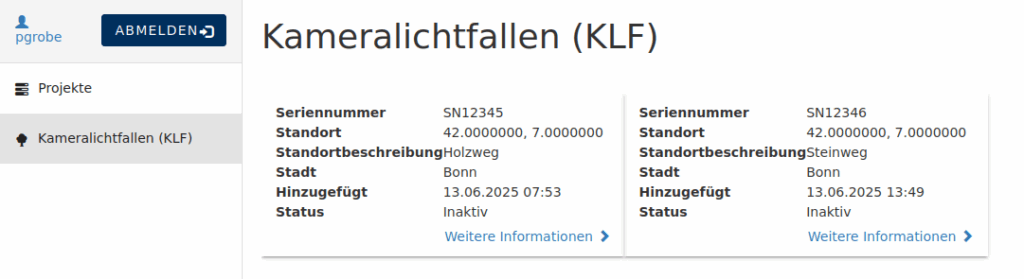
The ARNIs are visible and for the relevant project administrators and for the assigned uploaders.
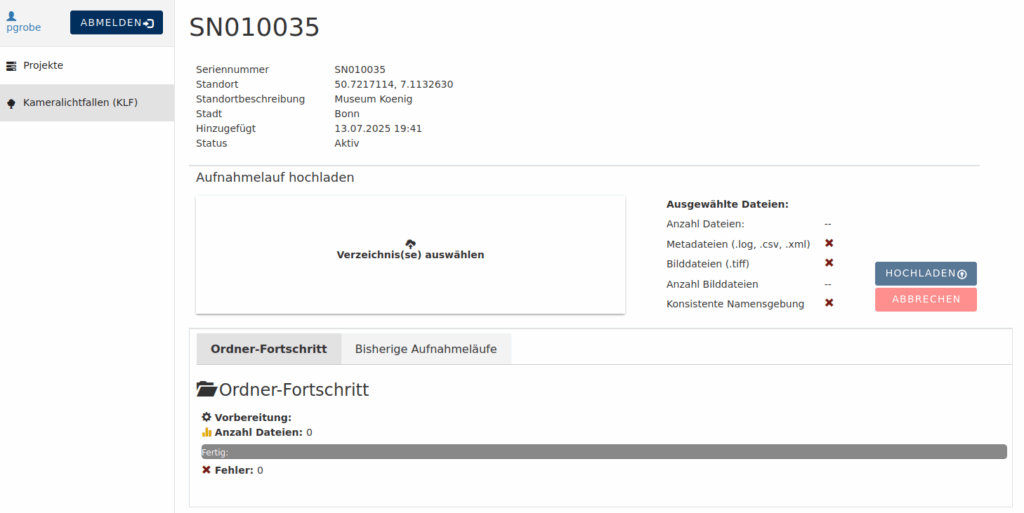
The site for uploading images is divided into three areas: The upper part contains information about the selected ARNI, the middle contains a large field for selecting the directory or USB stick with the images to be uploaded, an overview of the selected files, and, on the far right, the option to start the upload or reset the mask by canceling. The lower part shows the progress during the upload, just below the directory selection (“Order progress”) with detailed information about each directory. The tab next to it lists the previous uploads for the device. You can switch between the two tabs during the upload without interrupting the upload.
Important for uploading
Only whole directories can be uploaded, not individual images. This can also be the entire USB stick that is selected for upload. Each directory must contain a number of image files with associated MD5 sums (.md5), a log file (.log), a measurement file (.csv), and optionally a file containing the camera settings (.xml).
After selecting the directory, the statistics in the middle (“Selected files”) show whether everything is OK. At the same time, the files that have already been uploaded are compared and the individual directories are displayed with the number of files still to be uploaded for each directory. The progress bar shows the progress of the file check and upload.
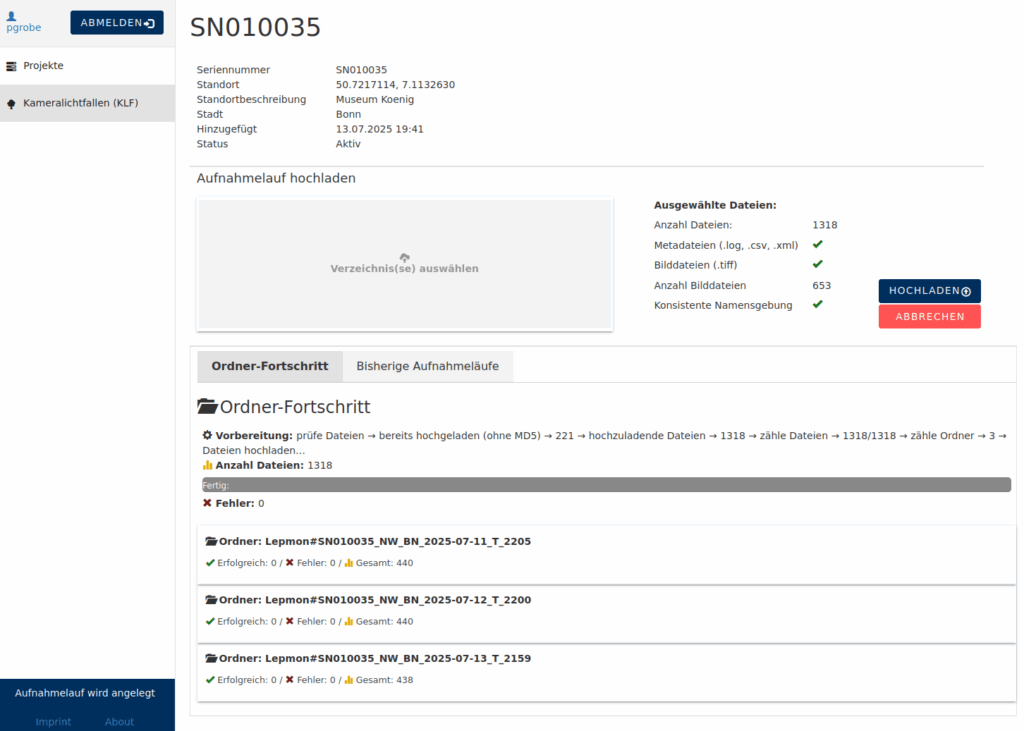
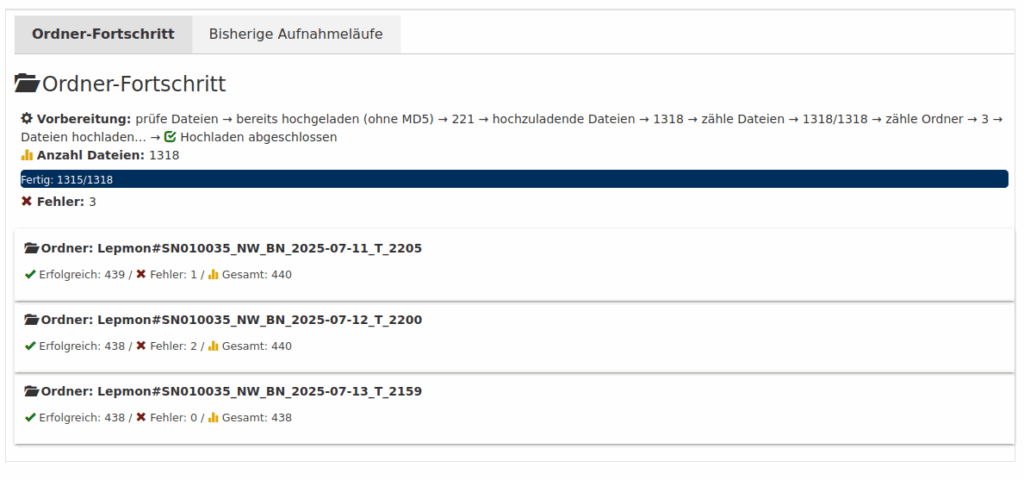
When the folder checks are completed, and no problems have been found, you can press the “Upload” button and the upload will start (left image below). The process can be stopped at any time by pressing the “Cancel” button. The completed upload is indicated by a green check mark and a blue bar, which must be completely filled. Any errors that may have occurred are summarized (see below for error handling).
Please note: “Cancel” stops the upload process but does not delete any files that have already been uploaded. To continue, please reload the page and reselect the canceled directory.
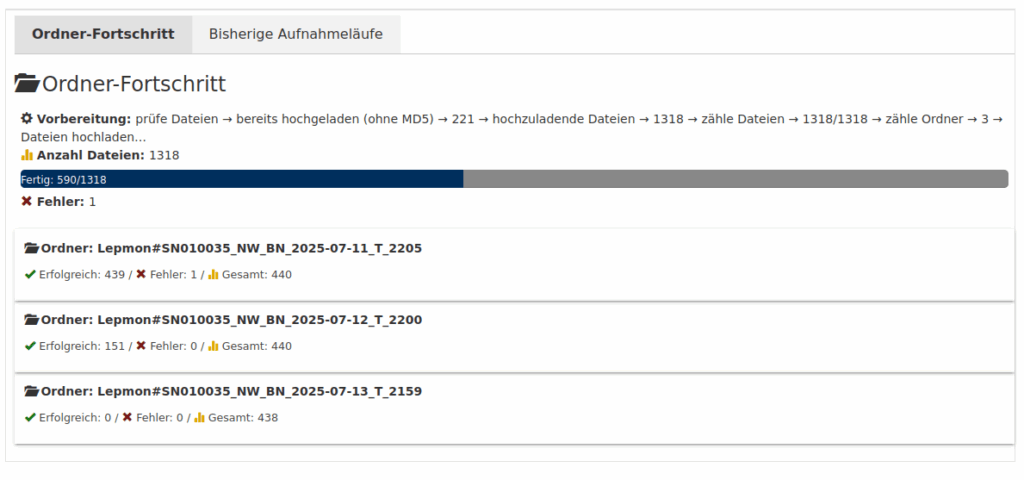
Error handling
During upload Two types of errors can occur:
1. During upload, e.g., due to interrupted network connections
2. When saving to the server, e.g., due to truncated files
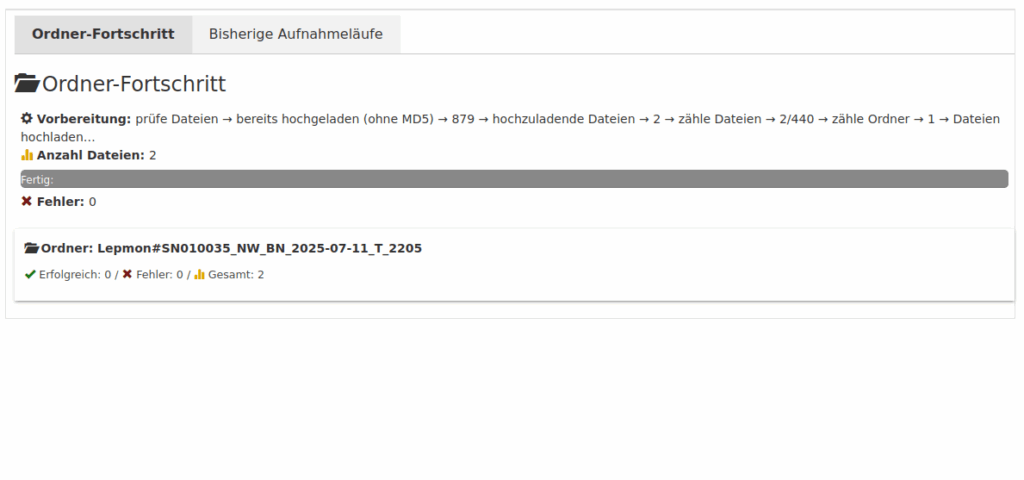
1. Upload error: several hundred files need to be transferred per directory. This is a challenge for the browser, the network connection, and the server. We strive to make the upload process as error-free as possible. Nevertheless, it will happen from time to time that individual files cannot be transferred (in the image in the upper right, two files (one file from the directory Lepmon#SN010035_NW_BN_2025-07-11_T_2205 and two from the directory Lepmon#SN010035_NW_BN_2025-07-12_T_2200). To re-upload the missing files, simply select the corresponding directory again and upload it: The system recognizes which files have already been successfully uploaded and re-uploads the missing files (image on the right).
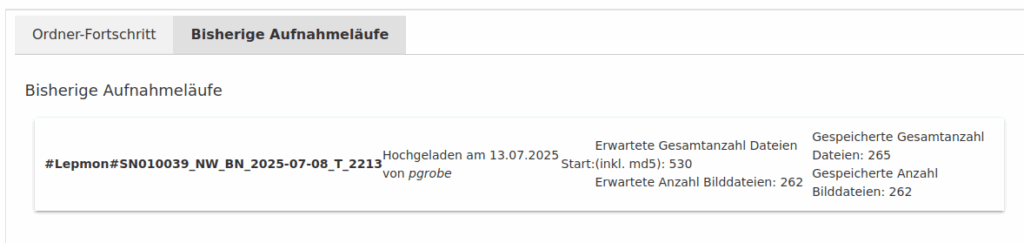
2. Memory error on the server: Each image captured by the camera trap is stored on the USB stick together with a checksum. After uploading, this checksum is compared with a new checksum generated from the respective image. If they are not the same, an error must have occurred, and the file is discarded. This can be seen in the second tab, “Previous recording runs,” after uploading.
After uploading all directories, please reload the page once and compare the number of expected files with the stored number of image files. If these are not the same, the upload for the corresponding folder must be repeated. To do this, simply select the corresponding directory again and upload it as described in step 1. The system recognizes which files have already been successfully uploaded and downloads the missing files.