Content
- Card and table view
- Detailed view
- Previous recording runs
Card and table view
The “ARNI Cameras” tab provides an overview of all ARNIs to which you have access, either in table or gallery view. You can switch between views using the “Map View” and “Table View” tabs at the top of the page.
Access permissions:
- Uploader
- LAUP administrators
- Project administrators
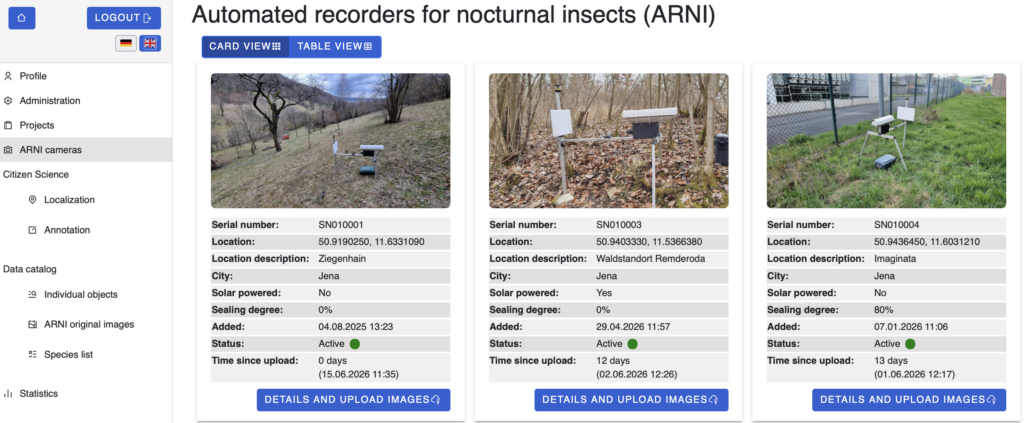
The “Card view” displays all ARNIs as entries showing a photo, serial number, location details, sealing degree, active status and time since the last upload.
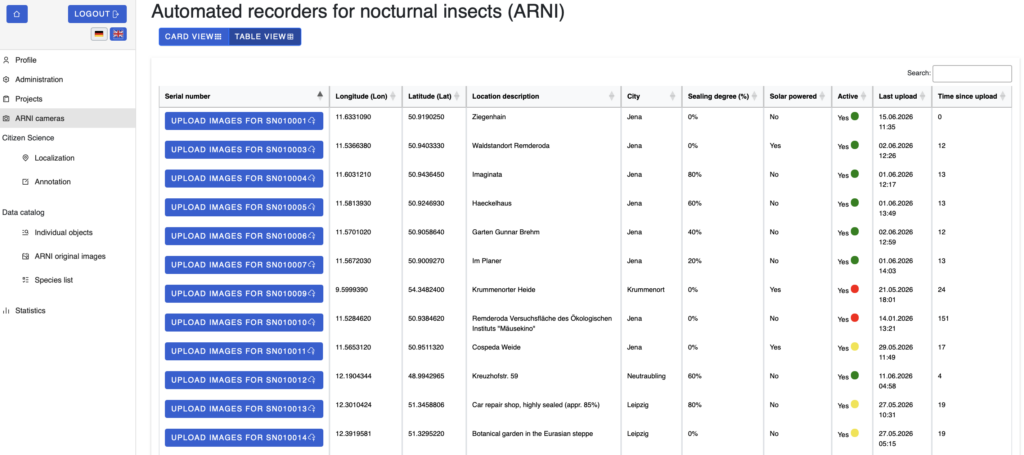
The “Table view” lists all ARNIs with serial number, GPS coordinates, location description, city, sealing degree, active status etc. The fields for location description, city and sealing degree can be edited directly in the table by clicking on them.
Detail view
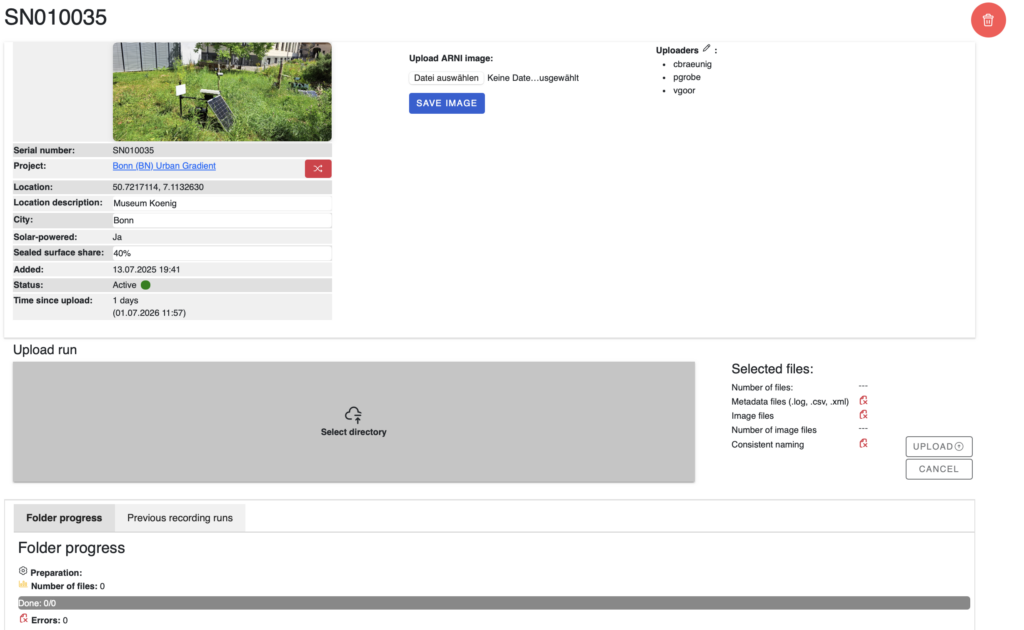
Clicking on “Details and upload images” in the card view or “Upload images for SN xy” in the table view opens the detail view for the relevant ARNI. From there, images can be uploaded for the corresponding ARNI (a detailed description of the upload process can be found under LAUP – Image Upload). Administrators also have the option to change the ARNI’s project assignment.
Users with access permissions can also upload an image of the ARNI or edit an existing one.
Previous recording runs
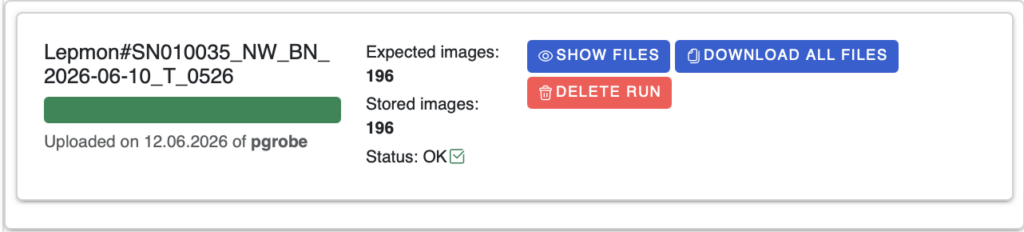
The “Previous recording runs” tab in the detailed view lists all previous uploads for the respective ARNI, sorted by year. For each run, the expected and actual number of images saved, as well as the status are displayed.
The following functions are available for each run:
- Show files: displays the individual files in the upload
- Download all files: downloads all files from the upload, including the log file, the measurement file and the file containing the associated camera settings
- Delete run: deletes the upload; this function is available exclusively to administrators and the user who performed the upload
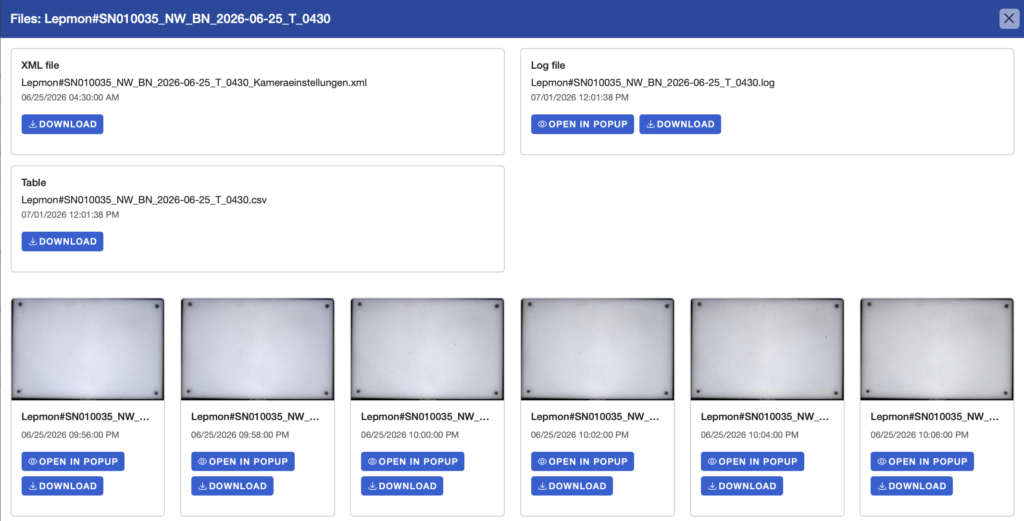
The “Show files” button opens a window showing all the files from the relevant recording session.
At the top, the XML file containing the camera settings, the log file and the measurement file (.csv) are listed individually, each with its file name and timestamp. Each file can be downloaded separately. The log file can also be opened directly in a pop-up window.
Below this, all images from the recording run are displayed. For each image, there are the options to open directly in a pop-up window to view it enlarged or to download.