Direct link to individual objects of the data catalog: LAUP – Individual objects
Contents
- Search parameters
- Results list
- Detailed view
- Validation by experts
The data catalog provides access to all individual objects that have been uploaded, localized and annotated to date. Filters and range queries can be used to narrow down the data, for example by taxon or environmental conditions. The data found can then be downloaded directly.
Search parameters
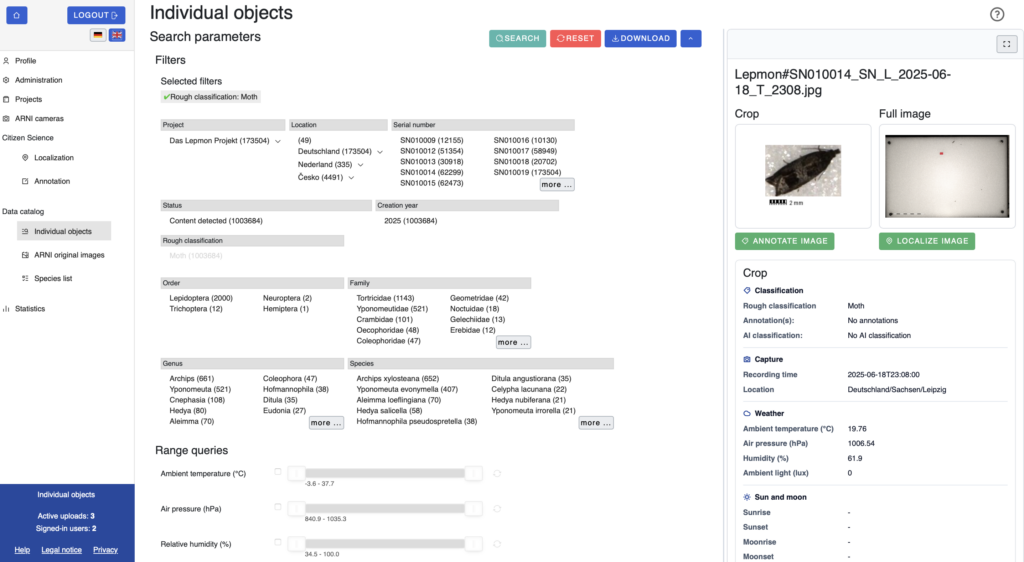
The search parameters can be expanded or collapsed with the arrow icon in the top right corner. The results list can be further filtered using the “Show saved entries” and “Show validated entries” tick boxes. Validated entries are those whose AI prediction has already been confirmed by an expert.
The filters are divided into several categories: project, location and serial number, status, year of creation, rough classification, as well as order, family, genus and species. Within a category, multiple values can be selected simultaneously. The “Search” button starts the search and the “Reset” button clears all filters. Data found can be downloaded via “Download”.
In addition, sliders are available under “Range queries“, which can be used to narrow down the results by ambient temperature, air pressure, ambient light and other factors. The section can also be expanded or collapsed using the arrow icon.
Results list
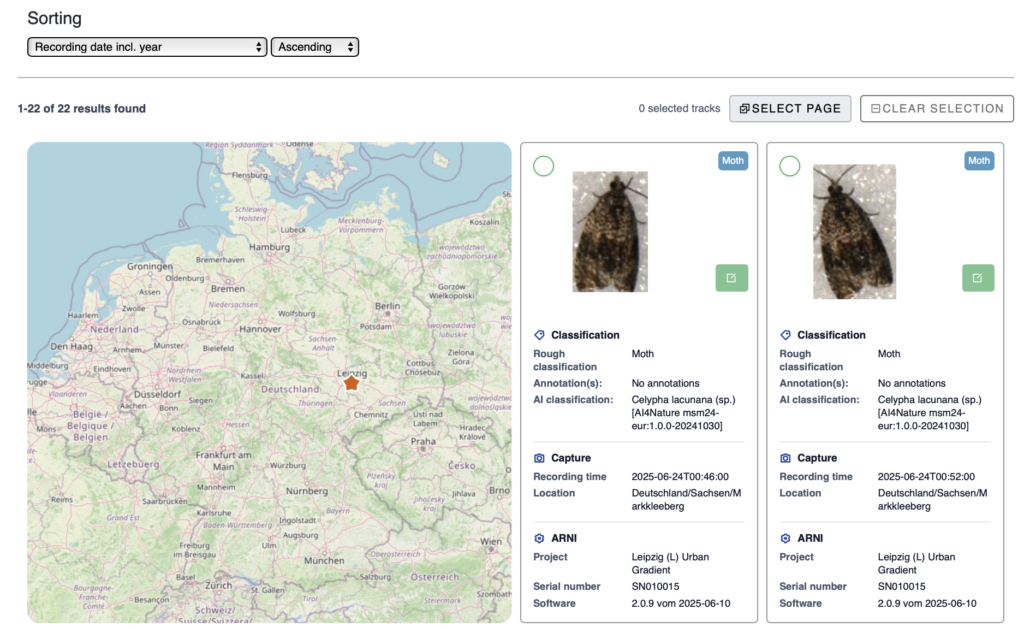
Below the search parameters, the individual objects found are displayed in a gallery. They can be sorted by date, time of capture or AI prediction score. The AI prediction score indicates how confident the AI is in its identification: a value equal or close to 1 indicates very confident identification, whilst a lower value close to 0 indicates a rather uncertain identification.
For each object, the rough classification, any annotations and the AI classification are displayed, supplemented by details regarding the capture and ARNI. The “Save for later” button can be used to flag an entry, which can then be retrieved later via the “Show saved entries” tick box. Clicking “Skip” skips an entry without saving it. Clicking on an entry’s thumbnail opens an enlarged view of the image without going directly to the annotation tool. Clicking the green button next to the thumbnail, however, takes you directly to the annotation tool.
In the top-left corner of the gallery view, a map shows the location of the selected item. If there are multiple results, all associated locations are shown together on the map.
Detail view
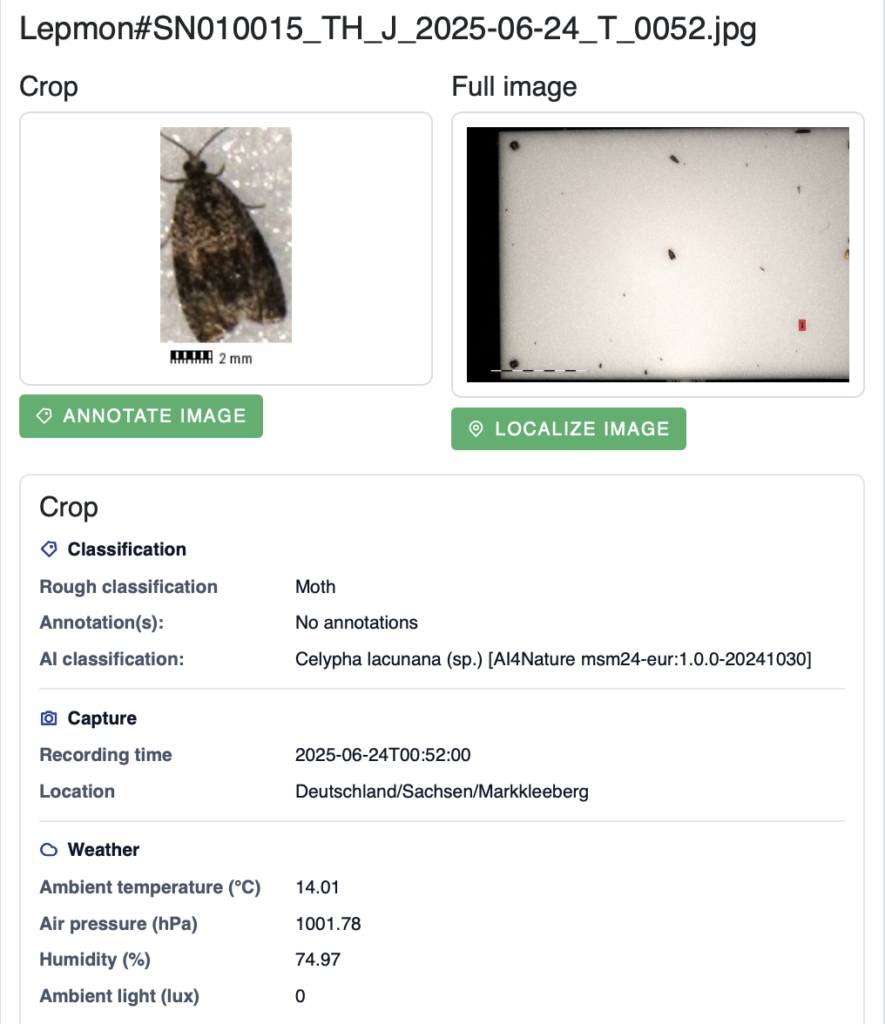
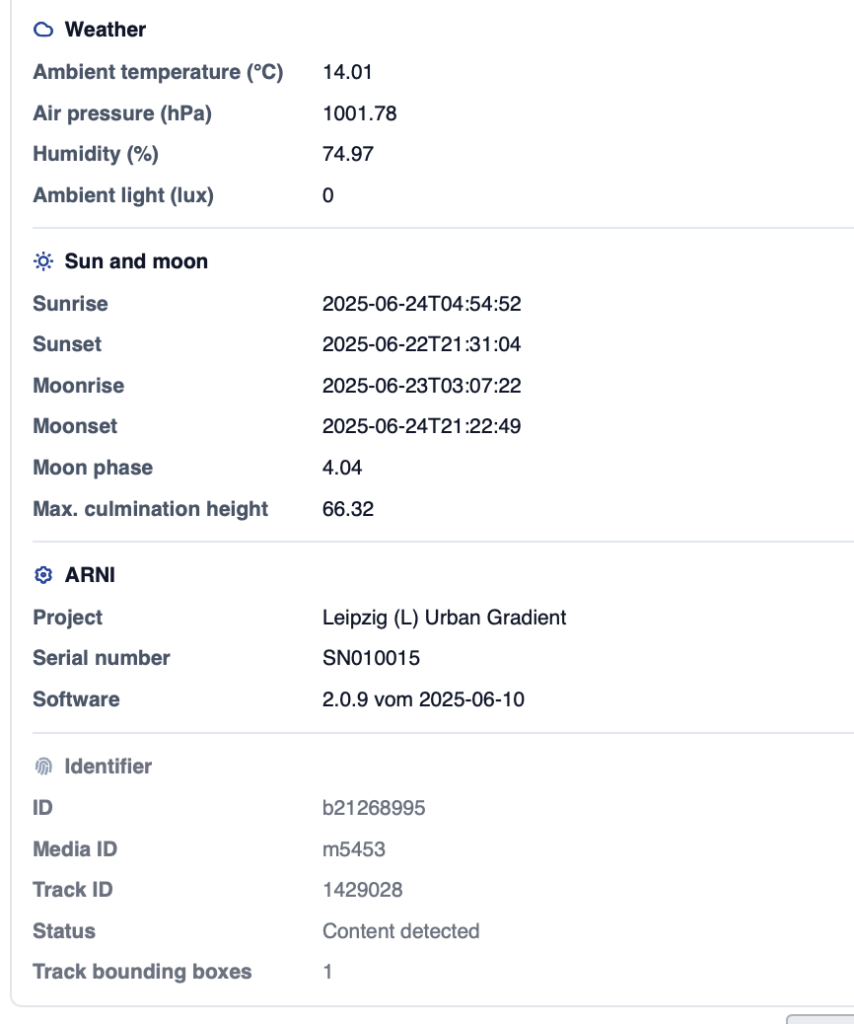
Clicking on an object opens the detail view on the right. It shows a cropped section and a full-screen view. From here, you can jump directly to the localization or annotation of the respective image. In addition to the classification and capture data, the weather conditions, as well as the position of the sound and moon, are also displayed here.
Validation by experts
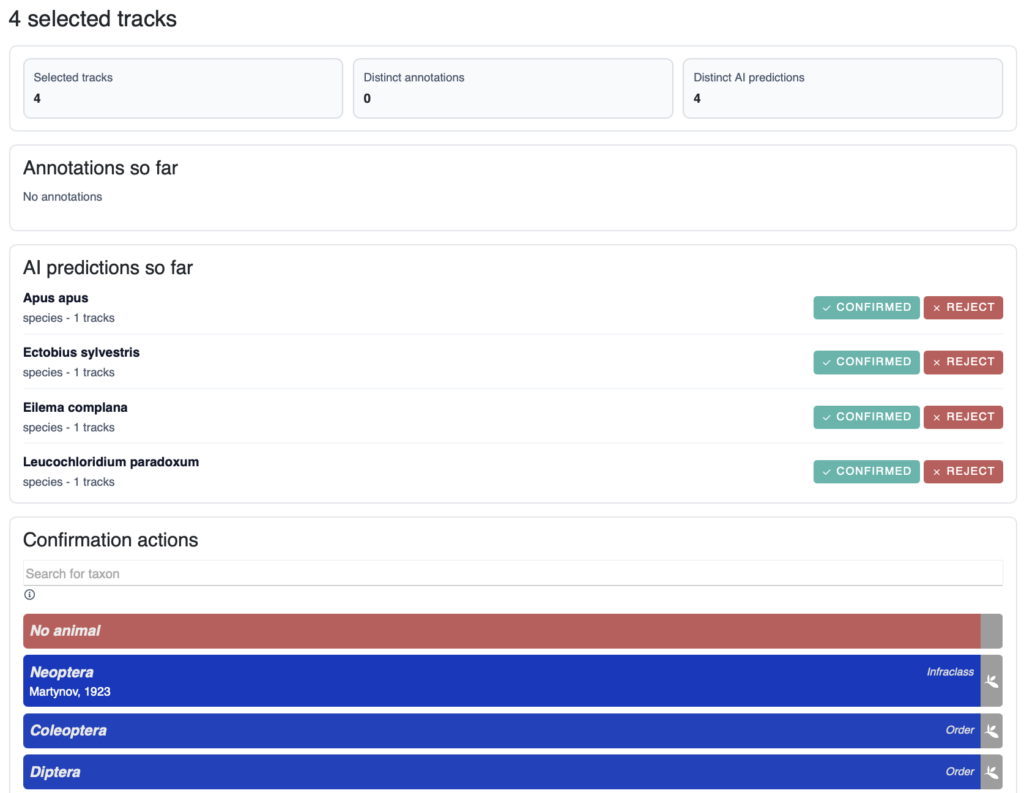
For experts, the page is titled “Expertise: Species Validation” rather than “Individual Objects”. Experts can select multiple entries at once. Selected entries are marked with a green tick. On the right-hand side, the number of selected entries and the number of different annotations and AI predictions are displayed, followed by a list of annotations and AI predictions made so far. For each prediction, a decision kann be made via “Confirmed” or “Reject”. If an AI prediction is confirmed, it can subsequently be found under “Show validated entries”. If rejected, the corresponding entry disappears from the list of individual objects.
In the “Confirmation actions” section, you can also add your own annotation directly to the selected entries. The searchable taxon list "Search by taxon" extends down to species level. Once annotation is complete, this appears alongside the AI prediction under “Annotations so far”. However, the “Confirmed” and “Reject” buttons for this entry are then grayed out and can no longer be selected, as a custom annotation has already been added.