Direct link to localization: LAUP – Localization
Content
- What is localization used for?
- Interface
- Creating, adjusting and deleting boxes
- Filters and metadata
What is localization used for?
The AI automatically recognizes individual insects in the ARNI images and marks them with bounding boxes (frames). Depending on the number and density of the insects, the AI may not always recognize all insects reliably. Some may be overlooked, whilst other may be misidentified (e.g. dirt on the image surface). The size and position of the frames may also be inaccurate. On the localization page, these AI-generated frames can be checked, adjusted, deleted or created a new.
Interface
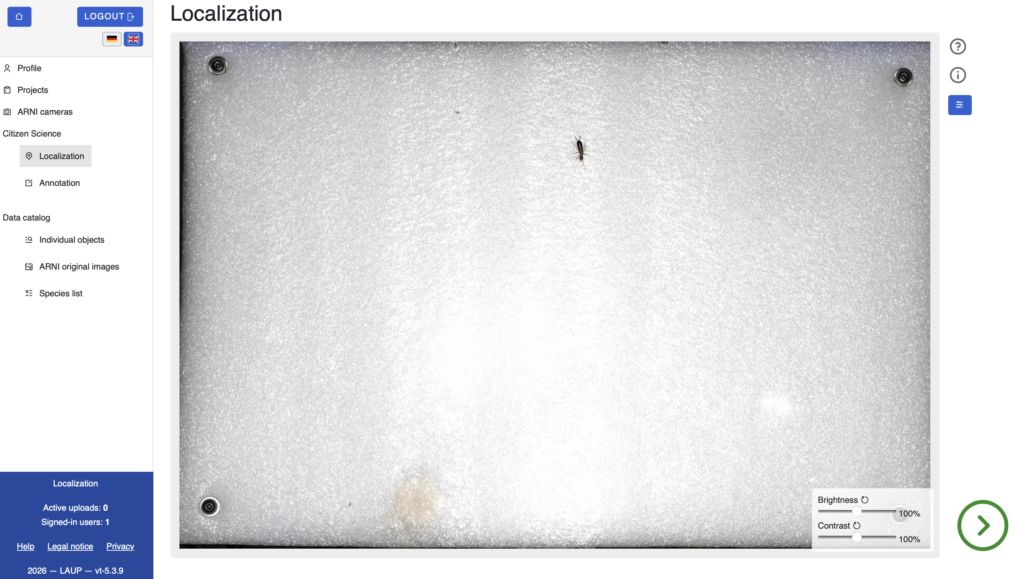
The localization page displays one image at a time from the LAUP database, including any existing bounding boxes. The brightness and contrast of the image can be adjusted using the sliders at the bottom right to make small or hard-to-see insects more visible.
The existing boxes are color-coded:
- Orange: AI-generated box, editable
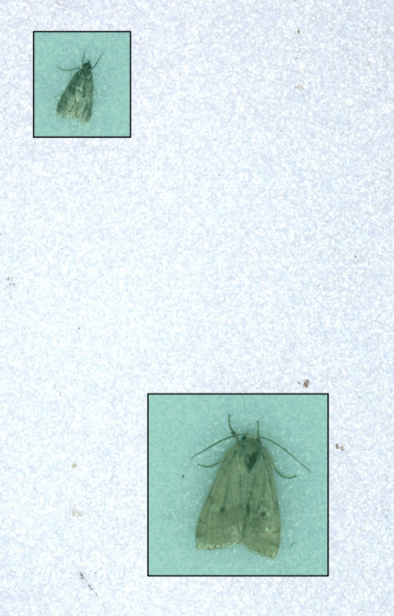
- Turquoise: User-generated box, editable
- Blue: Box with annotation, no longer editable
The green arrow button at the bottom right of the interface saves the changes and moves to the next image. Note: Changes to brightness or contrast are not saved after editing the boxes.
Creating, adjusting and deleting boxes
Creating a new box: Clicking on an empty area of the image activates creation mode (the cursor changes to a crosshair). Click and drag to draw a new box.
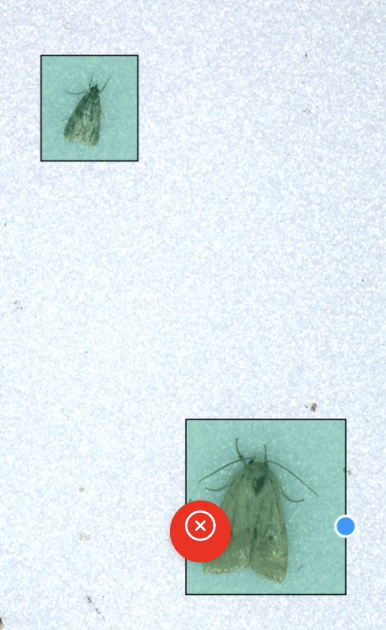
Adjusting existing box: Clicking on a box selects it. The height, width and position can then be changed by dragging the edges, corners or the box itself
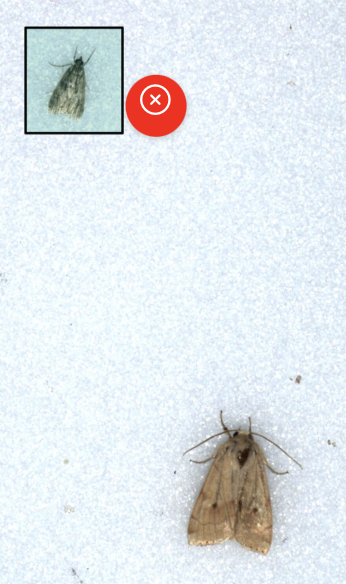
Deleting a box: Click on a frame and then click the red ⊗ button
Filters and metadata
The buttons in the top right-hand corner of the image can be used to show or hide additional information:
- ? : User guide
- i : Metadata for the current image (project, ARNI, city, date taken, temperature, air pressure, humidity)
- Filter: Limits the images displayed by project, month, year, state and city. Settings are applied via
"Save settings"and remain saves for future sessions (see also Profile -> Settings: localization and annotation)