Direct link to individual objects of the data catalog:LAUP – ARNI original images
Contents
- Search parameters
- Results list
- Detailed view
The “ARNI original images” tab displays the complete, unedited ARNI images prior to localization and annotation. AI classification is already available for most images. Unlike the individual objects section, this section does not display image sections of individual insects, but rather the complete original images. Filters and range queries can be used to narrow down the data, for example by taxon or environmental conditions. The data found can then be downloaded directly.
Search parameters
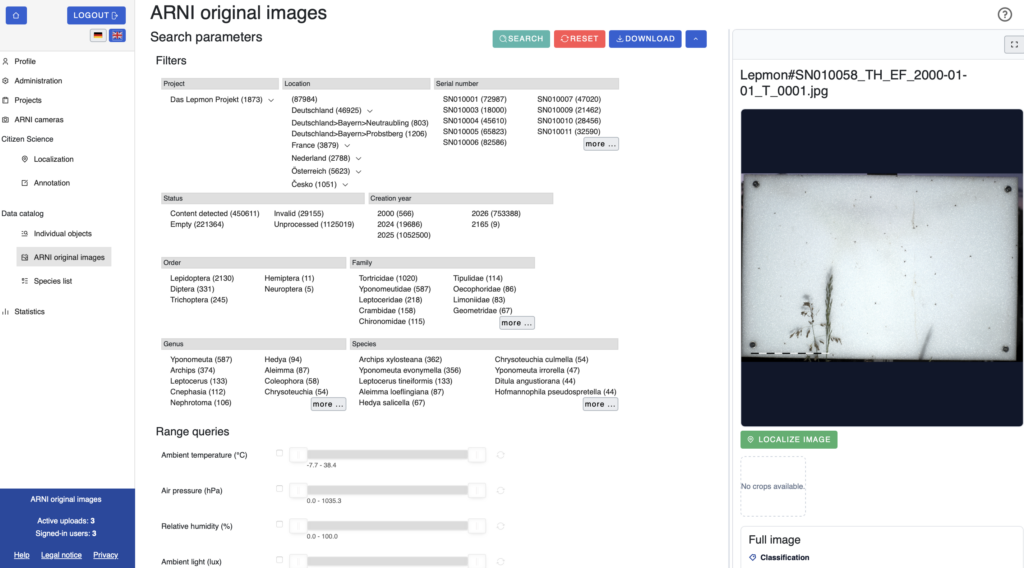
The search parameters can be expanded or collapsed with the arrow icon in the top right corner. The filters are divided into several categories: project, location and serial number, status, year of creation, as well as order, family, genus and species. Within a category, multiple values can be selected simultaneously. The “Search” button starts the search and the “Reset” button clears all filters. Data found can be downloaded via “Download”.
In addition, sliders are available under “Range queries”, which can be used to narrow down the results by ambient temperature, air pressure, ambient light and other factors.
Results list
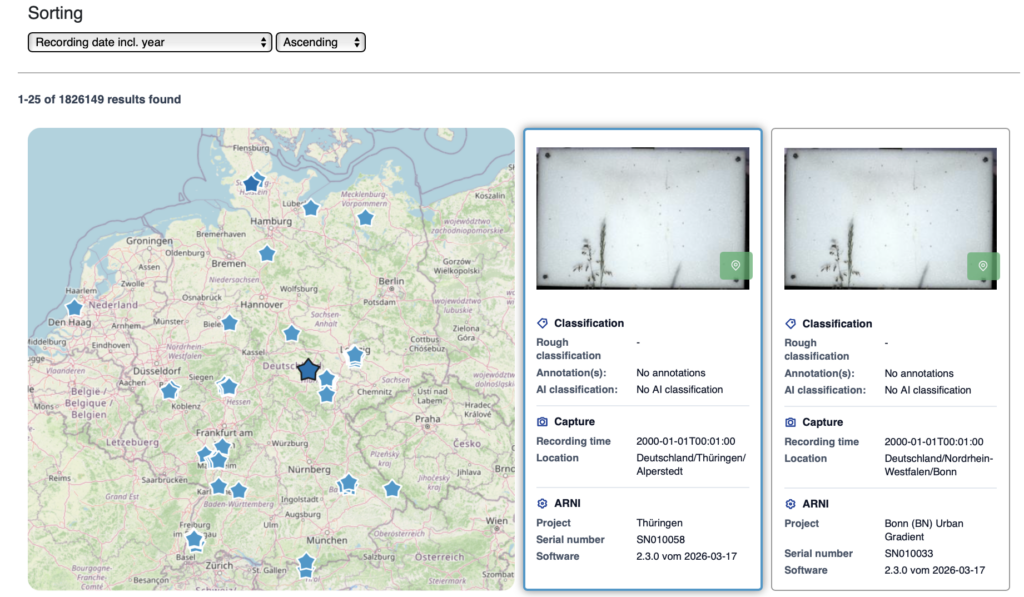
Below the search parameters, The original images found are displayed in a gallery. They can be sorted by date or time of capture. As no annotation or localization has taken place yet, the results do not display any values for rough classification and annotation. AI classification is available for all images with the filter “Status: Content detected”. Clicking the green location icon on each image takes you directly to the localization of that image. To the left of the list, a map shows the locations of the results found.
In the top-left corner of the gallery view, a map shows the location of the selected item. If there are multiple results, all associated locations are shown together on the map.
Detail view
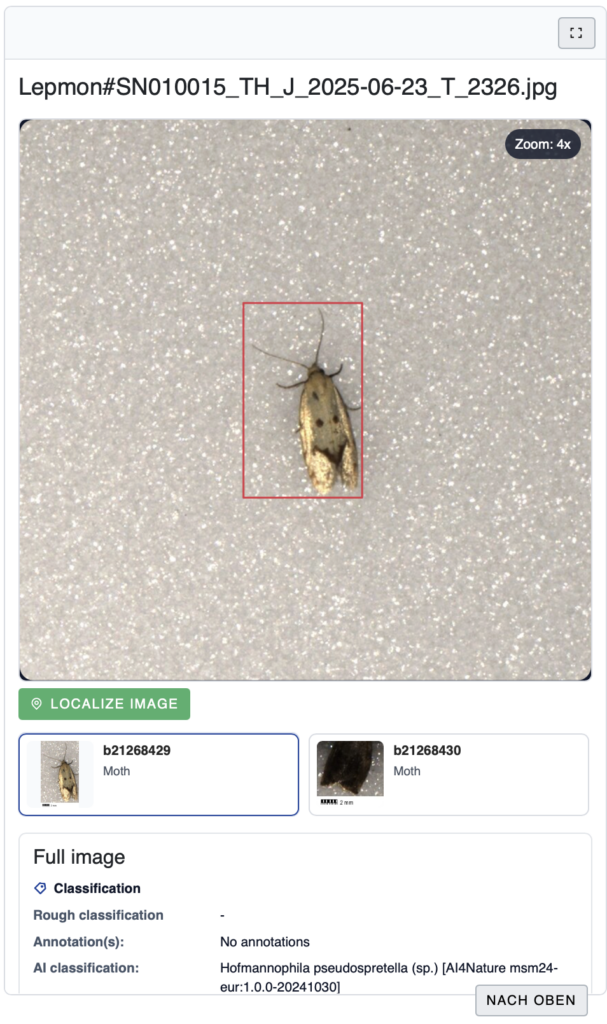
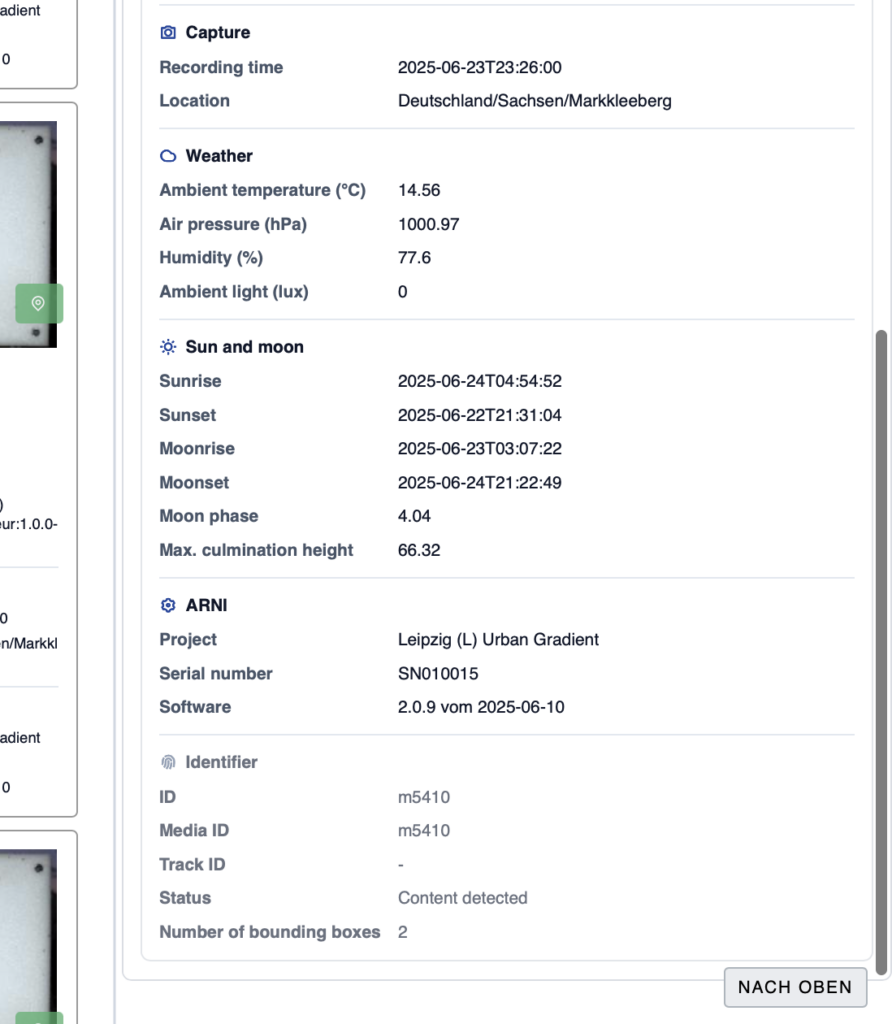
Clicking on an original image opens the detailed view on the right. It shows the full-screen image and any recognized bounding boxed as a preview, if available. Clicking on “go to image localization” takes you directly to the localization tool. Below the full-screen images, the recording date of the photo, the weather conditions and data on the sun and moon are displayed.